<?xml version="1.0" encoding="UTF-8" ?>
<feed xml:lang="ja" xmlns="http://www.w3.org/2005/Atom" xmlns:dc="http://purl.org/dc/elements/1.1/" xmlns:thr="http://purl.org/syndication/thread/1.0">
  <title type="text">書かないと忘れてしまうから</title>
  <subtitle type="html">仕事上必要な工夫など、備忘録として残します。</subtitle>
  <link rel="self" type="application/atom+xml" href="http://kenq.blog.shinobi.jp/atom"/>
  <link rel="alternate" type="text/html" href="http://kenq.blog.shinobi.jp/"/>
  <updated>2013-06-18T10:58:02+09:00</updated>
  <author><name>otsukare30</name></author>
  <generator uri="//www.ninja.co.jp/blog/" version="0.9">忍者ブログ</generator>
  <atom10:link xmlns:atom10="http://www.w3.org/2005/Atom" rel="hub" href="http://pubsubhubbub.appspot.com/" />
  <entry>
    <id>kenq.blog.shinobi.jp://entry/7</id>
    <link rel="alternate" type="text/html" href="http://kenq.blog.shinobi.jp/Entry/7/" />
    <published>2014-12-01T17:53:59+09:00</published> 
    <updated>2014-12-01T17:53:59+09:00</updated> 
    <category term="未選択" label="未選択" />
    <title>タスクとカレンダーの連携やデータ移行</title>
    <content mode="escaped" type="text/html" xml:lang="utf-8"> 
      <![CDATA[　タスク管理ソフトを使っていると、それぞれ一長一短があります。どうしても、複数アプリを使うこととなり、データを連携させたり、あるデータをダウンロードしてローカルで編集してからデータを再利用したいといったことがあると思います。<br />
<br />
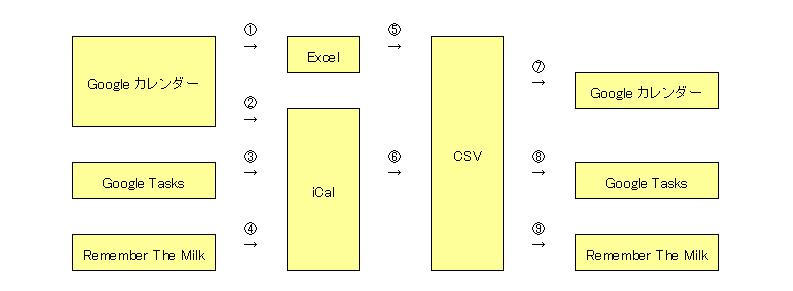
<a href="http://file.asnak.blog.shinobi.jp/Task.JPG" target="_blank"><img alt="" src="http://file.asnak.blog.shinobi.jp/Task.JPG" width="100%" /></a><br />
<a href="http://kenq.blog.shinobi.jp/Date/20121202/1/" target="_blank">①Googleカレンダー&rarr;Excel(csv)</a><br />
<a href="http://kenq.blog.shinobi.jp/Date/20121203/1/" target="_blank">②Googleカレンダー&rarr;ics</a><br />
<a href="http://kenq.blog.shinobi.jp/Date/20121204/1/" target="_blank">③Google Tasks&rarr;ics(csv)</a><br />
<a href="http://kenq.blog.shinobi.jp/Date/20121205/1/" target="_blank">④Remember The Milk&rarr;ics</a><br />
<a href="http://kenq.blog.shinobi.jp/Date/20121206/1/" target="_blank">⑤Excel&rarr;CSV</a><br />
<a href="http://kenq.blog.shinobi.jp/Date/20121207/1/" target="_blank">⑥ics&rarr;CSV</a><br />
<a href="http://kenq.blog.shinobi.jp/Date/20121208/1/" target="_blank">⑦CSV&rarr;Googleカレンダー</a><br />
<a href="http://kenq.blog.shinobi.jp/Date/20121209/1/" target="_blank">⑧CSV&rarr;Google Tasks</a><br />
<a href="http://kenq.blog.shinobi.jp/Date/20121210/1/" target="_blank">⑨CSV&rarr;Remember The Milk</a><br />
　私は、たとえば、2012年にタスクとして管理していたデータは、2013年になってしまえば2012年のカレンダーに日記や業務日誌のようにイベント扱いで表示させたいと思っています。<br />
　そのためには上図の③&rarr;⑥&rarr;⑦の流れで作業することになります。]]> 
    </content>
    <author>
            <name>otsukare30</name>
        </author>
  </entry>
  <entry>
    <id>kenq.blog.shinobi.jp://entry/20</id>
    <link rel="alternate" type="text/html" href="http://kenq.blog.shinobi.jp/Entry/20/" />
    <published>2014-03-24T22:22:44+09:00</published> 
    <updated>2014-03-24T22:22:44+09:00</updated> 
    <category term="未選択" label="未選択" />
    <title>XCOPYで差分ファイルをバックアップする</title>
    <content mode="escaped" type="text/html" xml:lang="utf-8"> 
      <![CDATA[最近マシンの調子が悪くなってきたと感じるので、時々、バックアップを取るようにしています。<br />
前回バックアップした時以降の更新日のファイルをバックアップするのですが、ついつい忘れてしまうので、メモしておきます。<br />
<br />
<span style="color: #222222; font-family: Arial, Tahoma, Helvetica, FreeSans, sans-serif; font-size: 13px; line-height: 18.479999542236328px;">xcopy &nbsp;コピー元 &nbsp;コピー先 &nbsp;/S /I /D /C /R /Y&nbsp;</span><span style="color: #222222; font-family: Arial, Tahoma, Helvetica, FreeSans, sans-serif; font-size: small;">/D:01/10/2014&nbsp;</span><span style="color: #222222; font-family: Arial, Tahoma, Helvetica, FreeSans, sans-serif; font-size: 13px; line-height: 18.479999542236328px;"><br />
</span><span style="color: #222222; font-family: Arial, Tahoma, Helvetica, FreeSans, sans-serif; font-size: 13px; line-height: 18.479999542236328px;"><br />
</span><span color="#222222" face="Arial, Tahoma, Helvetica, FreeSans, sans-serif" size="2" style="color: #222222; font-family: Arial, Tahoma, Helvetica, FreeSans, sans-serif; font-size: small;"><span style="line-height: 18.479999542236328px;">/D</span><span class="Apple-tab-span" style="line-height: 18.479999542236328px; white-space: pre;"> </span><span style="line-height: 18.479999542236328px;">コピー先に同名のファイルが存在する場合は更新日が新しいファイルのみコピーする</span><br />
<br />
<span style="line-height: 18.479999542236328px;">/C<span class="Apple-tab-span" style="white-space: pre;"> </span>コピー時のエラーを無視する<br />
<br />
</span>/R<span class="Apple-tab-span" style="white-space: pre;"> </span>読み取り専用属性のファイルも上書きコピーできるようにする<br />
<br />
/Y<span class="Apple-tab-span" style="white-space: pre;"> </span>同名のファイルが存在する場合、上書きの確認を行わない<br />
<br />
/D:MM/DD/YYYY<span class="Apple-tab-span" style="white-space: pre;"> </span>指定した日付以降に更新されたファイルのみコピーする<br />
<br />
/S<span class="Apple-tab-span" style="white-space: pre;"> </span>ファイルが存在する場合のみディレクトリごとコピーする<br />
<br />
/I<span class="Apple-tab-span" style="white-space: pre;"> </span>コピー先のディレクトリが存在しない場合は新規にディレクトリを作成する</span>]]> 
    </content>
    <author>
            <name>otsukare30</name>
        </author>
  </entry>
  <entry>
    <id>kenq.blog.shinobi.jp://entry/19</id>
    <link rel="alternate" type="text/html" href="http://kenq.blog.shinobi.jp/Entry/19/" />
    <published>2014-02-26T20:27:29+09:00</published> 
    <updated>2014-02-26T20:27:29+09:00</updated> 
    <category term="未選択" label="未選択" />
    <title>CSVファイル(住所)から一括で緯度経度を取得する</title>
    <content mode="escaped" type="text/html" xml:lang="utf-8"> 
      <![CDATA[<div>わけあって、何百もの建物の位置情報(緯度経度)が必要になりました。<br />
&nbsp;:<br />
<br />
たとえば<br />
<br />

<table style="border-collapse: collapse; width: 371px; height: 60px;"><colgroup><col width="130" /> <col width="241" /> </colgroup>
<tbody>
<tr height="20">
<td class="et7" height="20" width="130" style="font-size: 11pt; vertical-align: middle; border: 0.5pt solid #000000; height: 15pt; width: 97.5pt;">イオン旭川春光店</td>
<td class="et7" height="20" width="241" style="font-size: 11pt; vertical-align: middle; border: 0.5pt solid #000000; height: 15pt; width: 180.75pt;">北海道旭川市春光町10</td>
</tr>
<tr height="20">
<td class="et7" height="20" width="130" style="font-size: 11pt; vertical-align: middle; border: 0.5pt solid #000000; height: 15pt; width: 97.5pt;">イオン旭川永山店</td>
<td class="et7" height="20" width="241" style="font-size: 11pt; vertical-align: middle; border: 0.5pt solid #000000; height: 15pt; width: 180.75pt;">北海道旭川市永山3条12-2-11</td>
</tr>
<tr height="20">
<td class="et7" height="20" width="130" style="font-size: 11pt; vertical-align: middle; border: 0.5pt solid #000000; height: 15pt; width: 97.5pt;">イオン旭川西店</td>
<td class="et7" height="20" width="241" style="font-size: 11pt; vertical-align: middle; border: 0.5pt solid #000000; height: 15pt; width: 180.75pt;">北海道旭川市緑町23丁目2161-3</td>
</tr>
</tbody>
</table>
<br />
のような住所一覧があるとします。<br />
ここでは3店舗ですが、何十も何百もの件数がある時、一括して緯度経度の情報を取得するにはどうすればよいでしょうか。<br />
<br />
<a href="http://napzak.com/tool/gcode/upload/#csv" title="">NAPZAKさんの「住所から緯度経度を一括で調べるツール（＋標高もね）」</a><br />
<br />
というページがお勧めです。<br />
CSVファイルをアップロードすると一括して緯度・経度情報を付与してくれ、CSVファイルとしてダウンロードできます。<br />
この手のツールはアップロードするファイルがUTF8でないとダメだということも多いですが、ShiftJISにも対応しています。素晴らしいです。<br />
<br />
</div>]]> 
    </content>
    <author>
            <name>otsukare30</name>
        </author>
  </entry>
  <entry>
    <id>kenq.blog.shinobi.jp://entry/16</id>
    <link rel="alternate" type="text/html" href="http://kenq.blog.shinobi.jp/Entry/16/" />
    <published>2012-12-09T15:38:19+09:00</published> 
    <updated>2012-12-09T15:38:19+09:00</updated> 
    <category term="未選択" label="未選択" />
    <title>CSVを[Google Tasks] にアップロードする(Google Tasks Import)</title>
    <content mode="escaped" type="text/html" xml:lang="utf-8"> 
      <![CDATA[<div>
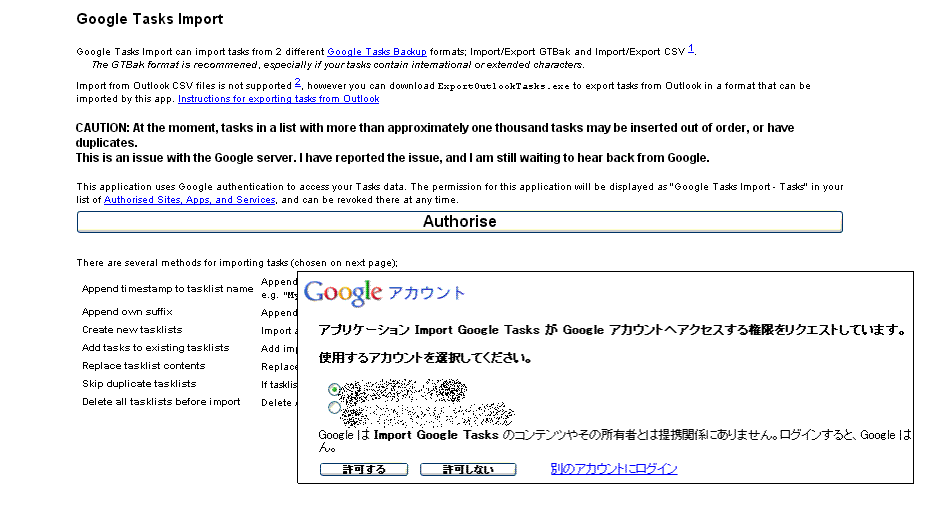
        　Google Tasks の欠点であるデータのインポートができない点は<a href="https://import-tasks.appspot.com/">Google Tasks Import</a> というWebサービスで補えます。&nbsp;</div>
<div>
        　このサービスを利用することでローカルで作成したCSV(Outlook形式)をGoogle Tasks にアップロードすることができます。</div>
<div>
        　GTBank形式というフォーマットもありますが、再編集が困難な書式です。<a href="https://tasks-backup.appspot.com/">Google Tasks Backup</a>によるバックアップをそのままリストアする時の専用書式です。<br />
        <br />
        ■Authorise画面</div>
<div>
        <a href="http://file.asnak.blog.shinobi.jp/GTI01.GIF" target="_blank"><img alt="GTI01.GIF" src="http://file.asnak.blog.shinobi.jp/Img/1355898798/" style="border-width: 0px; border-style: solid; width: 400px; height: 215px; vertical-align: middle;" /></a></div>
<div>
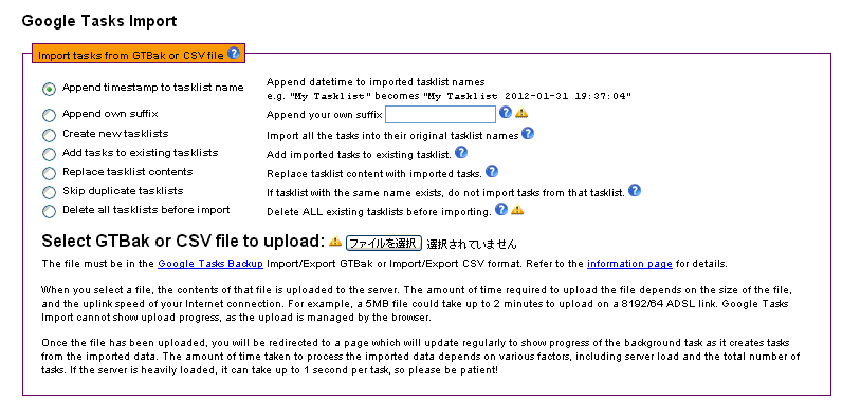
        ■アップロードの設定<br />
        <a href="http://file.asnak.blog.shinobi.jp/gti02.GIF" target="_blank"><img alt="gti02.GIF" src="http://file.asnak.blog.shinobi.jp/Img/1355898806/" style="border-width: 0px; border-style: solid; width: 400px; height: 191px; vertical-align: middle;" /></a><br />
        <br />
        &nbsp;</div>
　選択肢の内容ですが・・・
<pre class="prettyprint">
Append timestamp to tasklist name
　アップロードするタスクリスト名にタイムスタンプを付加。

Append own suffix
　アップロードするタスクリスト名に固定文字を付加。

Create new tasklists
　アップロードするタスクリスト名をそのまま採用。
　既存のタスクリストと重複する場合には同一名で別のタスクリストが作成される。

Add tasks to existing tasklists
　既存のタスクリストと同一名のタスクリストにタスクが追記される。
　その場合、重複タスクがあっても同一名で重複してタスクが追記される。
　存在しないタスクリストなら新規にタスクリストが作成される。　

Replace tasklist contents
　存在しないタスクリストなら新規にタスクリストが作成される。　
　既存のタスクリストと重複する場合には既存のタスクリストのタスクがクリアされた後にタスクが追記される。
　同一名のタスクリストが2つ以上ある場合には一つだけクリアされる。

Skip duplicate tasklists
　既存のタスクリストと重複する場合にはインポートされない。

Delete all tasklists before import
　既存のタスクリストを削除してからインポートする。　　

注意.デフォルトタスクリストはGoogleTasksの仕様により削除できない。
</pre>
　この手順にてタスクをアップロードできます。<br />
　<font style="color:#ff0000;">なおアップロードするファイルはUTF-8 without BOM でエンコードされていなければなりません。</font><br />
<br />
<br />
■使用出来るヘッダ<br />
<div>
        Google Tasks Import はOutlookCSVをインポートできます。</div>
Google Tasks Backup /Importが想定しているOutlookCSVのヘッダは下記の通りです。<br />
<pre class="prettyprint">
Subject
Start Date
Due Date
Reminder On/Off
Reminder Date
Reminder Time
Date Completed
% Complete
Total Work
Actual Work
Billing Information
Categories
Companies
Contacts
Mileage
Notes
Priority
Private
Role
Schedule+ Priority
Sensitivity
Status
</pre>
CSVの一行目は必ず上記のヘッダ項目が明示されていなければなりません。<br />
ただし、すべての項目が揃っていなくても良いようです。<br />
Subject,Due Date,Notes,Statusくらいで十分間に合うと思います。<br />
StatusはNot Started,Completeなどです。<br />
<br />]]> 
    </content>
    <author>
            <name>otsukare30</name>
        </author>
  </entry>
  <entry>
    <id>kenq.blog.shinobi.jp://entry/15</id>
    <link rel="alternate" type="text/html" href="http://kenq.blog.shinobi.jp/Entry/15/" />
    <published>2012-12-08T12:40:14+09:00</published> 
    <updated>2012-12-08T12:40:14+09:00</updated> 
    <category term="未選択" label="未選択" />
    <title>CSVを[Google カレンダー]にインポートする</title>
    <content mode="escaped" type="text/html" xml:lang="utf-8"> 
      <![CDATA[　他のアプリケーションからカレンダーなりタスクなりをCSVに落とし、必要な編集を行ったら、それを活用するアプリケーションに引き渡すことになります。<br />
　CSVをGoogleカレンダーに引き渡す場合には、<br />
Googleカレンダー&gt;マイカレンダー&gt;設定へと進みます。<br />
<br />
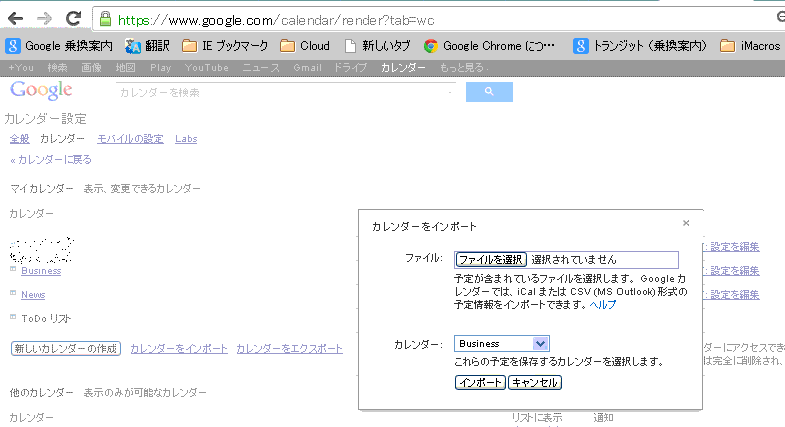
■Googleカレンダー設定画面<br />
　「カレンダーをインポート」をクリック<br />
　<a href="http://file.asnak.blog.shinobi.jp/Gcal1.GIF" target="_blank"><img alt="Googleカレンダー設定画面" src="http://file.asnak.blog.shinobi.jp/Img/1355887741/" style="border-width: 0px; border-style: solid; width: 400px; height: 217px; vertical-align: middle;" /></a><br />
<br />
iCal,CSVをインポートできます。<br />
<br />
　私の場合、GoogleTasks(親タスクは30タスクくらいに分かれています)をCSVに落とし、ローカルに保存した上で、リストをBusiness,Privateにまとめてカレンダーにインポートしています。<br />
　同時に来年の予定をCSVで作成してタスクにインポートしていますが、それはまた別の機会に。<br />
<br />]]> 
    </content>
    <author>
            <name>otsukare30</name>
        </author>
  </entry>
  <entry>
    <id>kenq.blog.shinobi.jp://entry/14</id>
    <link rel="alternate" type="text/html" href="http://kenq.blog.shinobi.jp/Entry/14/" />
    <published>2012-12-07T20:17:26+09:00</published> 
    <updated>2012-12-07T20:17:26+09:00</updated> 
    <category term="Ruby" label="Ruby" />
    <title>[Ruby][iCal] iCal_to_CSVのEXE版なのですが・・・</title>
    <content mode="escaped" type="text/html" xml:lang="utf-8"> 
      <![CDATA[　<a href="http://kenq.blog.shinobi.jp/Entry/13/" target="_blank">iCalファイルをCSVに変換するRubyソース</a>を報告しましたが、Rubyはコンパイラですから、Rubyを使用していない人にはEXEで提供する必要がありそうです。<br />
<div style="text-align: right;">
	<a href="//kenq.blog.shinobi.jp/File/iCal_to_CSV.exe">iCal_to_CSV(EXE形式)<br />
	<img src="http://file.asnak.blog.shinobi.jp/download1.png" width="100pix" /></a></div>
<br />
■使用法<br />
<pre class="prettyprint">
ical_to_csv xxxx.ics とするだけです。
xxxx.ics はiCalファイル名です。
xxxx.CSV に変換されます。
</pre>
<br />
処理対象のiCalファイルは Shift-JIS か UTF-8 形式でないといけません。<br />
<br />
]]> 
    </content>
    <author>
            <name>otsukare30</name>
        </author>
  </entry>
  <entry>
    <id>kenq.blog.shinobi.jp://entry/13</id>
    <link rel="alternate" type="text/html" href="http://kenq.blog.shinobi.jp/Entry/13/" />
    <published>2012-12-07T16:13:23+09:00</published> 
    <updated>2012-12-07T16:13:23+09:00</updated> 
    <category term="Ruby" label="Ruby" />
    <title>[Ruby][iCal]iCalファイルをCSV形式に変換するコード</title>
    <content mode="escaped" type="text/html" xml:lang="utf-8"> 
      <![CDATA[　カレンダーソフトの定番フォーマットと言えるiCalですが、一覧性に乏しく、手動で編集するのは困難です。<br />
　CSVやExcel形式ならば一覧性に優れ、コピー・アンド・ペーストでデータの再利用が簡単となります。<br />
<br />
<p class="selector02">
	iCal(エンコードShift-JIS)をCSVに変換するRubyコードを作成</p>
<br />
　そこで、iCal(エンコードShift-JIS)をCSVに変換するRubyコードを作成しました。<br />
<br />
　Rubyはインタープリタですので、Ruby(1.9.3で作成)のインタープリタ環境があることが前提です。<br />
　Rubyのインタープリタがないとか、とにかく早く変換したい人は<a href="http://kenq.blog.shinobi.jp/hoge/EditEntry/14/" target="_blank">&rarr;こちらへ</a>。<br />
<br />
　Rubyのインタープリタに加えて、<br />
　　Ri_Cal<br />
&nbsp; &nbsp; &nbsp;nkf<br />
　　kconv<br />
　　csv<br />
　　vruby が必要です。<br />
　(16,19,201行目のメッセージボックスが不要ならvrubyはインストール不要)<br />
　Googleカレンダー(カレンダー)、Remember The Milk(タスク管理)のiCalに対応していると思います。<br />
<br />
■ソース
<pre class="prettyprint linenums">
#! ruby -Ks
# coding:windows-31j
#! /usr/bin/env ruby

require &#39;rubygems&#39;
require &#39;csv&#39;
require &#39;nkf&#39;
require &#39;ri_cal&#39;
require &#39;kconv&#39;
require &#39;vr/vrdialog&#39;

#OCRA でコンパイルする時に内容チェックさせない。
unless (defined?(Ocra))
  #入力ファイル名を引数で受け取る。引数がなければ中止。
  inf=ARGV[0]
  if inf.nil? then
    SWin::Application.messageBox(&quot;処理対象のファイルをドラッグして起動するか、

バッチファイルで
　ical_csv 対象ファイル名 
で起動してください。

終了します。&quot; ,&quot;エラー&quot;,0)
    exit
  else
    SWin::Application.messageBox(&quot;iCSファイルをCSVに変換します。&quot; ,&quot;処理開始&quot;,0)
  end

  f = open(inf, &quot;r&quot;)
    str = f.read
  f.close
  
  #入力ファイルがShift-JISではないかもしれないので強制変換して.tmpに出力
  ott=File.dirname(inf)+&quot;/&quot;+File.basename(inf,&quot;.*&quot;)+&quot;.tmp&quot;
    ot= open(ott,&quot;w&quot;)
    str_sjis=NKF.nkf(&#39;-s -Lw&#39;,str)
    ot.print str_sjis
  ot.close

  #.tmpから入力して.csvに出力すると宣言
  inf=File.dirname(inf)+&quot;/&quot;+File.basename(inf,&quot;.*&quot;)+&quot;.tmp&quot;
  otf=File.dirname(inf)+&quot;/&quot;+File.basename(inf,&quot;.*&quot;)+&quot;.csv&quot;

  ics = open(inf)
  cal = RiCal.parse(ics)
  # calendarという文字列があればカレンダーと判断　&lt;&lt;&lt;&lt;　必要に応じて修正
  calortask=cal.first.prodid.downcase.index(&quot; calendar&quot;)

  CSV.open(otf, &#39;w&#39;) do |writer|
    unless calortask.nil? then
      #カレンダーと判断した時のヘッダ
      writer &lt;&lt; [&quot;Subject&quot;,&quot;Start Date&quot;,&quot;Start Time&quot;,&quot;End Date&quot;,&quot;End Time&quot;,&quot; Meeting Organizer&quot;,&quot; Description&quot;, &quot;Location&quot;,&quot;Categories&quot;,&quot;Attendee&quot;,&quot;Status&quot;,&quot;Duration&quot;]
    else
      #タスクと判断した時のヘッダ
      writer &lt;&lt; [&quot;Subject&quot;,&quot;Start Date&quot;,&quot;Due Date&quot;,&quot;Status&quot;,&quot;Date Completed&quot;,&quot;% Complete&quot;,&quot;Categories&quot;,&quot;Notes&quot;,&quot;Priority&quot;]
    end
  end

  unless calortask.nil? then
  
    cal.first.events.each do |event|

      p1= event.summary

      x=event.dtstart
      unless x.nil? then
        p2= x.strftime(&quot;%Y/%m/%d&quot;)
        p3= x.strftime(&quot;%H:%M&quot;)
      else
        p2= &quot;&quot;
        p3=&quot;&quot;
      end

      x=event.dtend
      unless x.nil? then
        p4= x.strftime(&quot;%Y/%m/%d&quot;)
        p5= x.strftime(&quot;%H:%M&quot;)
       else
        p4= &quot;&quot;
        p5=&quot;&quot;
      end

      x=event.organizer
      unless x.nil? then
        p6= x
      else
        p6= &quot;&quot;
      end

      x= event.description
      unless x.nil? then
        p7= x.gsub(/(
|
|
)/, &#39;
&#39;)
      else
        p7= &quot;&quot;
      end

      x=event.location
      unless x.nil? then
        p8= x
      else
        p8= &quot;&quot;
      end
      
      x=event.categories
      unless x.nil? then
        p9= x
      else
        p9= &quot;&quot;
      end
      
      x=event.attendee
      unless x.nil? then
        p10= x
      else
        p10= &quot;&quot;
      end
      
      x=event.status
      unless x.nil? then
        p11= x
      else
        p11= &quot;&quot;
      end
      
      x=event.duration
      unless x.nil? then
        p12= x
      else
        p12= &quot;&quot;
      end

      CSV.open(otf, &#39;a&#39;) do |csv|
        unless p1.nil? then
          row = [p1,p2,p3,p4,p5,p6,p7,p8,p9,p10,p11,p12]
          csv &lt;&lt; row
        end
      end
    end
    # cal.first.events.each do に対応
    
  else
  #calortask=nil なのでtodoと判断した時の処理

    cal.first.todos.each do |todos|
      
      x=todos.summary
      unless x.nil? then
        p1= x
      else
        p1= &quot;&quot;
      end
      
      x=todos.dtstart
      unless x.nil? then 
        p2= x.strftime(&quot;%Y/%m/%d %H:%M&quot;)
      else 
        p2= &quot;&quot;
      end

      x=todos.due
      unless x.nil? then
        p3= x.strftime(&quot;%Y/%m/%d %H:%M&quot;)
      else
        p3= &quot;&quot;
      end

      x=todos.status
      unless x.nil? then
        p4= x
      else
        p4= &quot;Not Started&quot;
      end

      x=todos.completed
      unless x.nil? then
        p5= x.strftime(&quot;%Y/%m/%d %H:%M&quot;)
      else
        p5= &quot;&quot;
      end
      
      x=todos.percent_complete
      unless x.nil? then
        p6= x
      else
        p6= &quot;&quot;
      end
      
      x=todos.categories
      unless x.nil? then
        p7= x
      else
        p7= &quot;&quot;
      end
      
      x= todos.description
      unless x.nil? then 
        p8= x.gsub(/(
|
|
)/, &#39;
&#39;)
      else
        p8= &quot;&quot;
      end
      
      x=todos.priority
      unless x.nil? then
        p9= x
      else
        p9= &quot;Normal&quot;
      end
      
      CSV.open(otf, &#39;a&#39;) do |csv|
        unless p1.nil? then
          row = [p1,p2,p3,p4,p5,p6,p7,p8,p9]
          csv &lt;&lt; row
        end        
      end
      
    end # cal.first.todos.each do に対応
  end #calortask=nil なのでtodoと判断した時の処理を閉じる
  SWin::Application.messageBox(otf+&quot;に出力しました&quot; ,&quot;完了&quot;,0)
  ics.close
  a=File.delete(*inf)
end

</pre>
<div style="text-align: right;">
	<a href="//kenq.blog.shinobi.jp/File/iCal_to_CSV.exe"><img src="http://file.asnak.blog.shinobi.jp/download1.png" width="100" /></a><br />
	右クリック（Macの場合はしばらくクリック）して、「対象をファイルに保存」などしてください。</div>
<br />
　私はRubyがインストールされていない環境で使用するためOcraにてコンパイルするのですが、その場合、いちいち引数をチェックに行ってうるさいのでコンパイル時にはメインルーチンをチェックしないようにしています。<br />
<br />
■iCal の区別は PRODID で
<pre class="prettyprint">
Remember The Milk の iCal の PRODID
　PRODID:-//Remember The Milk//rtm.Service.iCalendar.Export 3.0//EN
Google Calendar の iCal の PRODID
PRODID:-//Google Inc//Google<u><b> Calendar</b></u> 70.9054//EN
</pre>
　PRODIDでカレンダーかタスクかの分岐設定をしていますので、ご自分の使いたいiCalのPRODIDに合わせてください。私の場合RTMとGoogleの区別だけつけば良く、Googleカレンダーでは、「 Calendar」となっているので、スペース+Calendarを含んでいればGoogleカレンダーとしています。<br />
<br />
■実行法
<pre class="prettyprint">
　iCal_to_CSV.rb  xxxxx.ics
　のように引数でインプットファイルを指定します。
　これにより xxxxx.CSV が作成されます。
　ただし、RUBY.EXE に PATH が通っていなければエラーになります。
</pre>
<br />
■実行結果(Google Task:Google Task Backup経由で取得)<br />
<img alt="" src="http://file.asnak.blog.shinobi.jp/Task1.GIF" width="96%" /><br />
■実行結果(Remember The Milk)<br />
<img alt="" src="http://file.asnak.blog.shinobi.jp/Task2.GIF" width="96%" /><br />
■実行結果(Google Calaendar)<br />
<img alt="" src="http://file.asnak.blog.shinobi.jp/Task3.GIF" width="96%" /><br />
<br />
<br />
<br />
]]> 
    </content>
    <author>
            <name>otsukare30</name>
        </author>
  </entry>
  <entry>
    <id>kenq.blog.shinobi.jp://entry/12</id>
    <link rel="alternate" type="text/html" href="http://kenq.blog.shinobi.jp/Entry/12/" />
    <published>2012-12-06T10:02:28+09:00</published> 
    <updated>2012-12-06T10:02:28+09:00</updated> 
    <category term="未選択" label="未選択" />
    <title>[Gcal2Excel]ファイルを[Googleカレンダー]Outlook形式CSVに変換する[Ruby]コード</title>
    <content mode="escaped" type="text/html" xml:lang="utf-8"> 
      <![CDATA[　GCal2ExcelによりGoogleカレンダーの予定表データはxls,xlsx,CSVに変換できます。<br />
　ここではGCal2Excelで作成されるxls形式データをGoogleカレンダーOutlook形式CSVに変換するRubyコードを紹介します。<br />
　Excel形式になっているのだから、変換する必要はないように思うかもしれませんが、GCal2Excelで作成されるデータは編集後にGoogleカレンダーに戻すことを想定していないようですので、ヘッダが異なっています。<br />
<br />
■GCal2Excelで得られたデータの例<br />
<table height="38" style="border-collapse:collapse;width:435.75pt;" width="581">
	<colgroup>
		<col width="159" />
		<col width="128" />
		<col width="72" />
		<col width="66" />
		<col width="84" />
		<col width="72" />
	</colgroup>
	<tbody>
		<tr height="19">
			<td class="et1" height="19" style="font-size: 11pt; vertical-align: bottom; height: 14.25pt; width: 119.25pt;" width="159">
				<font style="font-size:small;">Title</font></td>
			<td class="et1" height="19" style="font-size: 11pt; vertical-align: bottom; height: 14.25pt; width: 96pt;" width="128">
				<font style="font-size:small;">Start</font></td>
			<td class="et1" height="19" style="font-size: 11pt; vertical-align: bottom; height: 14.25pt; width: 54pt;" width="72">
				<font style="font-size:small;">End</font></td>
			<td class="et1" height="19" style="font-size: 11pt; vertical-align: bottom; height: 14.25pt; width: 49.5pt;" width="66">
				<font style="font-size:small;">Duration</font></td>
			<td class="et1" height="19" style="font-size: 11pt; vertical-align: bottom; height: 14.25pt; width: 63pt;" width="84">
				<font style="font-size:small;">Description</font></td>
			<td class="et1" height="19" style="font-size: 11pt; vertical-align: bottom; height: 14.25pt; width: 54pt;" width="72">
				<font style="font-size:small;">Where</font></td>
		</tr>
		<tr height="19">
			<td class="et2" height="19" style="font-size: 11pt; vertical-align: bottom; height: 14.25pt; width: 119.25pt;" width="159">
				<font style="font-size:small;">社内試験監督官</font></td>
			<td class="et1" height="19" style="font-size: 11pt; vertical-align: bottom; height: 14.25pt; width: 96pt;" width="128">
				<font style="font-size:small;">2012/12/17&nbsp;15:00</font></td>
			<td class="et1" height="19" style="font-size: 11pt; vertical-align: bottom; height: 14.25pt; width: 54pt;" width="72">
				<font style="font-size:small;">2012/12/17&nbsp;17:00</font></td>
			<td class="et1" height="19" style="font-size: 11pt; vertical-align: bottom; height: 14.25pt; width: 49.5pt;" width="66">
				<font style="font-size:small;">02:00</font></td>
			<td height="19">
				<font style="font-size:small;">管理職<br />
				一部専門職</font></td>
			<td height="19">
				1405,会議ルーム</td>
		</tr>
	</tbody>
</table>
　例えばヘッダがTitleとなっていますが、アップロードするときにはSubjectとすべきです。<br />
　微妙にGoogleカレンダー形式CSVと異なるので変換します。<br />
<br />
■ソース(Ruby 1.9.3)<br />
<pre class="prettyprint linenums">
#! ruby -Ks
# coding:windows-31j
#! /usr/bin/env ruby

# GCalExcel.rb
# Coded in Ruby 1.9.3

require &#39;rubygems&#39;
require &#39;vr/vrdialog&#39;
require &#39;spreadsheet&#39;
require &#39;nkf&#39;

#引数チェック(この　if　then　ブロック使わないなら vr/vrdialog　Gem　はrequire不要)
    inf=ARGV[0]
  if inf.nil? then
      SWin::Application.messageBox(&quot;処理対象のファイルをドラッグして起動するか、

バッチファイルで
　GCalExcel.rb 対象ファイル名 
で起動してください。

終了します。&quot; ,&quot;エラー&quot;,0)
      exit
  else
    SWin::Application.messageBox(&quot;GCalExcelファイルをGoogleカレンダー対応CSVに変換します。&quot; ,&quot;処理開始&quot;,0)
  end
  
#引数で渡されたファイルから入力して.csvに出力すると宣言
  book = Spreadsheet.open(inf,&quot;rb&quot;)
  otf=File.dirname(inf)+&quot;/&quot;+File.basename(inf,&quot;.*&quot;)+&quot;.csv&quot;
  o=File.open(otf,&quot;w&quot;)

#引数で渡されたファイルから入力して.csvに出力すると宣言
book.worksheets.each do |ws|

    #ヘッダチェック:Location(GCal2EccelのWhere)格納列はどこか?
  for i in 0..10 
    if ws[0,i]==&quot;Where&quot; then 
      LocationCol=i
    end
  end
    #ヘッダ出力
      record = []
      record &lt;&lt; [&quot;Subject&quot;,&quot;Start Date&quot;,&quot;Start Time&quot;,&quot;End Day&quot;,&quot;End Time&quot;,&quot;Description&quot;,&quot;Location&quot;,&quot;All Day Event&quot;]
      o.puts NKF.nkf(&#39;-w80 -Lu&#39;,record.join(&quot;,&quot;))

    #一行ずつ処理
  ws.each do |row|
      record = []
      allDayEvent=TRUE
    unless row[3][0,5]==&quot;24:00&quot; then 
      allDayEvent=FALSE
    end
      unless row[0]==&quot;Title&quot; &amp;&amp; row[1]==&quot;Start&quot; then
          unless row[0].nil? then row[0]=row[0].gsub(&quot;,&quot;,&quot;&quot;) end 
          unless row[4].nil? then row[4]=row[4].gsub(&quot;,&quot;,&quot;&quot;) end 
          unless row[LocationCol].nil? then row[LocationCol]=row[LocationCol].gsub(&quot;,&quot;,&quot;&quot;) end 
      record &lt;&lt; [row[0],row[1][0,10],row[1][11,5],row[2][0,10],row[2][11,5],row[4],row[LocationCol],allDayEvent]
                #日付時刻のデータの正当性チェックをしていないので必要ならチェック手順を追加して下さい
      o.puts NKF.nkf(&#39;-w80 -Lu&#39;,record.join(&quot;,&quot;).gsub(/
/,&quot;:|:&quot;))
      end
  end
end

  #使用ファイルのクローズ処理
  o.close
  book.io.close

#-------------------------------------------------- 
#---- Additional Setting for Spreadsheet Gem  ----#
#-------------------------------------------------- 

module Spreadsheet
  class Workbook
    attr_accessor :io
  end
end

</pre>
<div style="text-align: right;">
	<a href="//kenq.blog.shinobi.jp/File/GCalExcel.rb"><img src="http://file.asnak.blog.shinobi.jp/download1.png" width="100" /></a><br />
	右クリック（Macの場合はしばらくクリック）して、「対象をファイルに保存」などしてください。</div>
<br />
　Excel(xls)ファイルにアクセスするためにspreadsheetというGemをrequireしています。<br />
　vr/vrdialogは初期処理のダイアログボックスを表示しないならrequireしなくてもかまいません。<br />
元のExcelファイルはSHIFT―JISと想定されますが、出力はUTF-8のBOMなし形式です。NKFによりUTF-8のBOMなしに変換しています。<br />
　このような場合には
<pre class="prettyprint">
#! ruby -Ks
</pre>
　は、これで良いのか?にわかRubyUserである私は悩んでしまいます。<br />
　このスクリプトにおけるCSVとはカンマ区切りテキスト形式だけ再現しています。文字列を&quot;&quot;で囲むK3方式ではありません。そのため元データに半角カンマがあるとセルが分割されてしまいますから、省力化のため削除しています。<br />
　また元データにセル内改行が含まれているとCSVでは再現できず崩れてしまいます。<br />
　Created By,Attendees,Atendee Countは無視しています。必要ならばWhereをLocationにしている処理を参考にして改良して下さい。<br />
<br />
■実行法<br />
<pre class="prettyprint">
 GCalExcel.rb   xxxxx.xls
　のように引数でインプットファイルを指定します。
　これにより xxxxx.CSV が作成されます。
　ただし、RUBY.EXE に PATH が通っていなければエラーになります。
</pre>
<br />
■変換したデータの例<br />
<table height="38" style="border-collapse:collapse;width:432.00pt;" width="576">
	<colgroup>
		<col width="72" />
		<col width="72" />
		<col width="72" />
		<col width="72" />
		<col width="72" />
		<col width="72" />
		<col width="72" />
		<col width="72" />
	</colgroup>
	<tbody>
		<tr height="19">
			<td class="et1" height="19" style="color: rgb(0, 0, 0); font-size: 11pt; vertical-align: middle; height: 14.25pt; width: 54pt;" width="72">
				<font style="font-size:small;">Subject</font></td>
			<td class="et1" height="19" style="color: rgb(0, 0, 0); font-size: 11pt; vertical-align: middle; height: 14.25pt; width: 54pt;" width="72">
				<font style="font-size:small;">Start&nbsp;Date</font></td>
			<td class="et1" height="19" style="color: rgb(0, 0, 0); font-size: 11pt; vertical-align: middle; height: 14.25pt; width: 54pt;" width="72">
				<font style="font-size:small;">Start&nbsp;Time</font></td>
			<td class="et1" height="19" style="color: rgb(0, 0, 0); font-size: 11pt; vertical-align: middle; height: 14.25pt; width: 54pt;" width="72">
				<font style="font-size:small;">End&nbsp;Day</font></td>
			<td class="et1" height="19" style="color: rgb(0, 0, 0); font-size: 11pt; vertical-align: middle; height: 14.25pt; width: 54pt;" width="72">
				<font style="font-size:small;">End&nbsp;Time</font></td>
			<td class="et1" height="19" style="color: rgb(0, 0, 0); font-size: 11pt; vertical-align: middle; height: 14.25pt; width: 54pt;" width="72">
				<font style="font-size:small;">Description</font></td>
			<td class="et1" height="19" style="color: rgb(0, 0, 0); font-size: 11pt; vertical-align: middle; height: 14.25pt; width: 54pt;" width="72">
				<font style="font-size:small;">Location</font></td>
			<td class="et1" height="19" style="color: rgb(0, 0, 0); font-size: 11pt; vertical-align: middle; height: 14.25pt; width: 54pt;" width="72">
				<font style="font-size:small;">All&nbsp;Day&nbsp;Event</font></td>
		</tr>
		<tr height="19">
			<td class="et1" height="19" style="color: rgb(0, 0, 0); font-size: 11pt; vertical-align: middle; height: 14.25pt; width: 54pt;" width="72">
				<span style="font-size: small;">社内試験監督官</span></td>
			<td class="et2" height="19" style="color: rgb(0, 0, 0); font-size: 11pt; vertical-align: middle; height: 14.25pt; width: 54pt;" width="72" x:num="41264">
				<font style="font-size:small;">2012/12/17</font></td>
			<td class="et3" height="19" style="color: rgb(0, 0, 0); font-size: 11pt; vertical-align: middle; height: 14.25pt; width: 54pt;" width="72" x:num="0.666666666666667">
				<font style="font-size:small;">15:00</font></td>
			<td class="et2" height="19" style="color: rgb(0, 0, 0); font-size: 11pt; vertical-align: middle; height: 14.25pt; width: 54pt;" width="72" x:num="41264">
				<font style="font-size:small;">2012/12/17</font></td>
			<td class="et3" height="19" style="color: rgb(0, 0, 0); font-size: 11pt; vertical-align: middle; height: 14.25pt; width: 54pt;" width="72" x:num="0.729166666666667">
				<font style="font-size:small;">17:00</font></td>
			<td height="19">
				<font style="font-size:small;">管理職:|:</font><span style="font-size: small;">一部専門職</span></td>
			<td height="19">
				<font style="font-size:small;">1405会議ルーム</font></td>
			<td class="et1" height="19" style="color: rgb(0, 0, 0); font-size: 11pt; vertical-align: middle; height: 14.25pt; width: 54pt;" width="72" x:bool="FALSE">
				<font style="font-size:small;">FALSE</font></td>
		</tr>
	</tbody>
</table>
　セルデータにカンマや改行があるとCSVが崩れてしまいます。<br />
　そのため、改行は:|:という文字列に置換し、カンマは削除しています。<br />
<br />
　変換したデータをもとにして複写したり新たに作成したりしてデータを作り上げたら、CSVをGoogleカレンダーに取り込めば良いわけです。<br />
<br />
]]> 
    </content>
    <author>
            <name>otsukare30</name>
        </author>
  </entry>
  <entry>
    <id>kenq.blog.shinobi.jp://entry/11</id>
    <link rel="alternate" type="text/html" href="http://kenq.blog.shinobi.jp/Entry/11/" />
    <published>2012-12-05T13:46:59+09:00</published> 
    <updated>2012-12-05T13:46:59+09:00</updated> 
    <category term="iCal" label="iCal" />
    <title>[iCal][RTM]RTMのiCalの取得</title>
    <content mode="escaped" type="text/html" xml:lang="utf-8"> 
      <![CDATA[　Remember The Milk は他のアプリとの連携のためにiCal URLを用意しています。<br />
　このiCal URLにアプリから自動ログインしてデータを取得することも可能です。<br />
　ただ、うちの会社ではセキュリティの関係なのか自動ログインはできません。また、ソースコードでIDやパスワードを埋め込むのは怖いですから、データの自動取得はやめておきます。<br />
<br />
■Remember The Milk のiCalについて<br />
<img src="http://file.asnak.blog.shinobi.jp/rtm1.JPG" width="96%" />
<div style="text-align: right;">
        rtmid は架空のidです。</div>
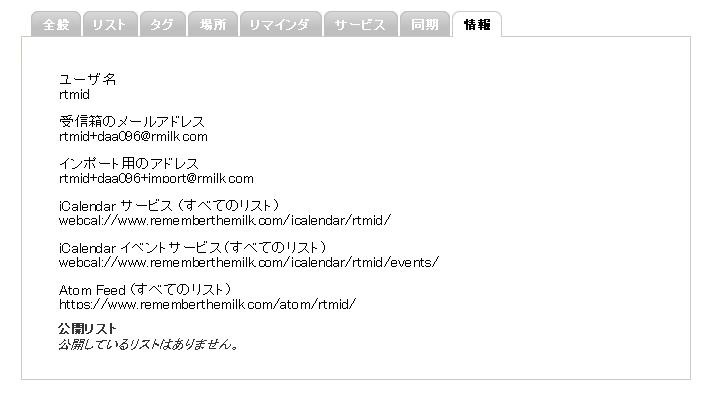
　トップページから「設定」「情報」と選ぶと上記画面になります。<br />
　このうち、iCalendarサービス(すべてのリスト)を選ぶと完了済みも含めたリストとなります。<br />
　iCalアドレスは他のアプリと連携する際に設定するURLです。<br />
<br />
■Googleカレンダーに表示する<br />
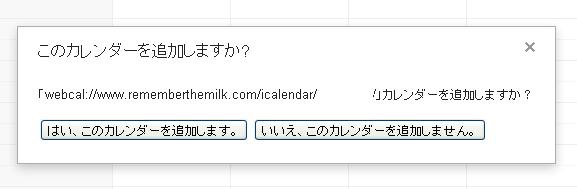
　Google にログインした状態で、iCalendarサービス(すべてのリスト)等をクリックすると <img src="http://file.asnak.blog.shinobi.jp/rtm2.JPG" width="96%" /> となりますので「はい、このカレンダーを追加します」を選ぶと、Googleカレンダーにタスクが表示されるようになります。<br />
<br />
■iCal形式のファイルをローカルにダウンロードする<br />
<br />
ブラウザのアドレスバーにiCalアドレスを入力し、webcal:とあるのをhttps:に変更すると、iCSファイルがダウンロードされるはずですのでローカルで作業する場合にはそれを利用します。<br />]]> 
    </content>
    <author>
            <name>otsukare30</name>
        </author>
  </entry>
  <entry>
    <id>kenq.blog.shinobi.jp://entry/10</id>
    <link rel="alternate" type="text/html" href="http://kenq.blog.shinobi.jp/Entry/10/" />
    <published>2012-12-04T11:27:47+09:00</published> 
    <updated>2012-12-04T11:27:47+09:00</updated> 
    <category term="未選択" label="未選択" />
    <title>[Google Tasks] をCSVなどに落とす(Google Tasks Backup)</title>
    <content mode="escaped" type="text/html" xml:lang="utf-8"> 
      <![CDATA[　Google Tasks はとても便利なのですが、標準ではデータのインポートもエクスポートもできないという困った代物となっています。<br />
<div>
	　以前は、Google Tasks Porterというサービスがあったのですが、2012年10月時点では正しく動作しなくなっているようです。</div>
<div>
	　しかし、世の中には賢い人が多数いるもので、<a href="https://tasks-backup.appspot.com/">Google Tasks Backup </a>というwebサービスを提供してくださっている方がおられますので紹介します。</div>
<br />
<br />
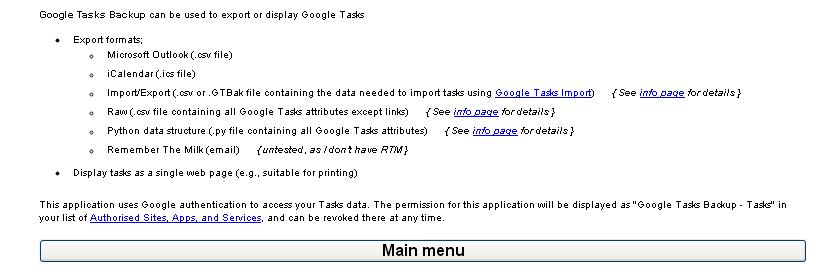
■初めて使用する時などに表示される画面
<div>
	　<img alt="" src="http://file.asnak.blog.shinobi.jp/GTB1.JPG" style="width: 96%;" /></div>
<br />
表示される画面はGoogleの使用環境によって変わります。<br />
この画面で Main menu ボタンをクリックすると<br />
<br />
<br />
■アクセス許可を求める画面<br />
<div>
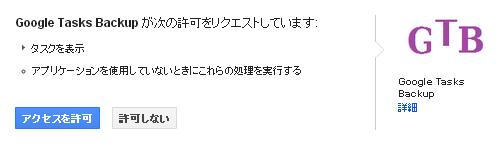
	　<img alt="" src="http://file.asnak.blog.shinobi.jp/GTB105.JPG" style="width: 96%;" /><br />
	という画面が表示されますから、少し考えてから「アクセスを許可」するを押しました。<br />
	&nbsp;</div>
<br />
■Advanced settings において<br />
<div>
	　<img alt="" src="http://file.asnak.blog.shinobi.jp/gtb3.JPG" style="width: 96%;" /><br />
	<br />
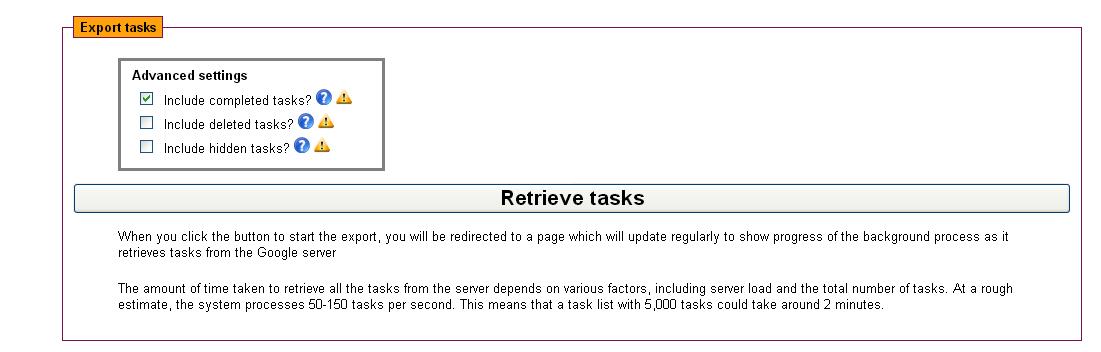
	　Include completed tasks? &nbsp;完了済タスクを含めるか<br />
	　Include deleted tasks? 　　削除済みタスクを含めるか<br />
	　Include hidden tasks?　　 完了済で隠したタスクを含めるか<br />
	を選択します。<br />
	&nbsp;</div>
<br />
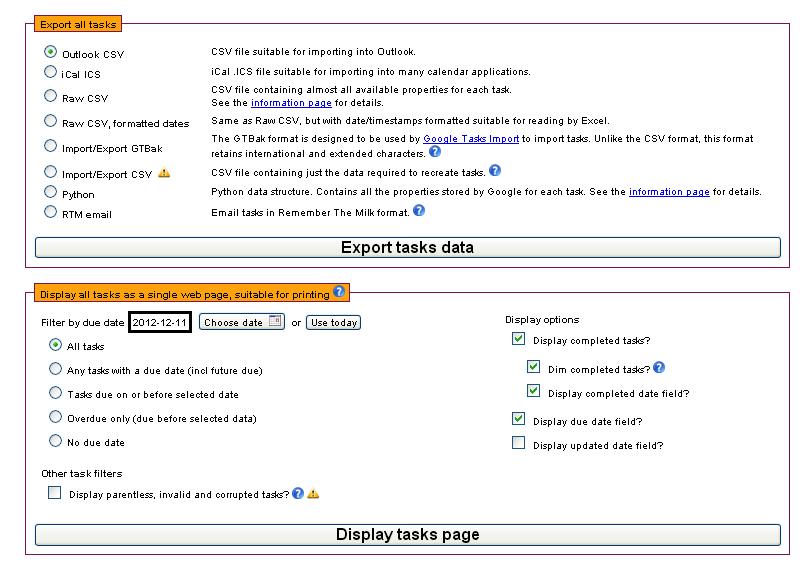
■エクスポートまたは画面表示の形式を選択<br />
<div>
	　<img alt="" src="http://file.asnak.blog.shinobi.jp/gtb4.JPG" style="width: 96%;" /><br />
	という画面では、<br />
	・iCal iCS<br />
	・CSVが欲しい時は、OutlookCSV<br />
	・Remember The Milk と連携させたい時はRTM email<br />
	の3つが使えそうです。</div>
<br />
<br />
■注意<br />
(1)この方法で得られるファイルは、UTF-8形式のようです。<br />
(2)RTM emailについて<br />
　リスト名はタグ名に変換されます。<br />
(3)アクセス許可について<br />
　「アクセスを許可」するとGoogle Task BackupがGoogle Calendarに常時接続状態になります。気持ちが悪いという場合には　　<a href="http://kenq.blog.shinobi.jp/hoge/EditEntry/2/">[Googleアカウントへのアクセス許可を削除する]</a>へ<br />
<br />
<br />
■ちなみに<br />
　iCalやCSVは <a href="http://import-tasks.appspot.com">Google Tasks Import </a>という逆方向サービスでGoogleTaskに送れます。<br />
<div>
	&nbsp;</div>
<br />
]]> 
    </content>
    <author>
            <name>otsukare30</name>
        </author>
  </entry>
</feed>